How to make your own halftone generator, without code
A step-by-step guide to making a custom halftone generator in Blueprint: what to write in the request, which controls you get, how to change it in plain words, and how to export and share it.
There are plenty of halftone generators online. They take a photo, turn it into dots and give you a few sliders. That covers a lot. Then a project asks for something a bit different: two inks that don’t quite line up, lines instead of dots, a screen that follows a logo, a halftone your client can use without you. This guide shows how to make that tool in Blueprint, by describing it.
1. Write the request
A good request says three things: what the tool starts from, what it draws, and which controls you want. For example:
- “A riso halftone tool for my images: one or two overprinted inks, with dots, lines or crosses”
That exact sentence is one of Blueprint’s ready-made requests: send it as is and you get a copy of the finished tool without spending credits. Any other sentence goes to the AI and builds a new tool. Pasting a reference image (a riso print you like, a scan of a newspaper) helps it match a look.
2. Look at what you get
Here is the tool that request produces. It runs in your browser, in an isolated sandbox.
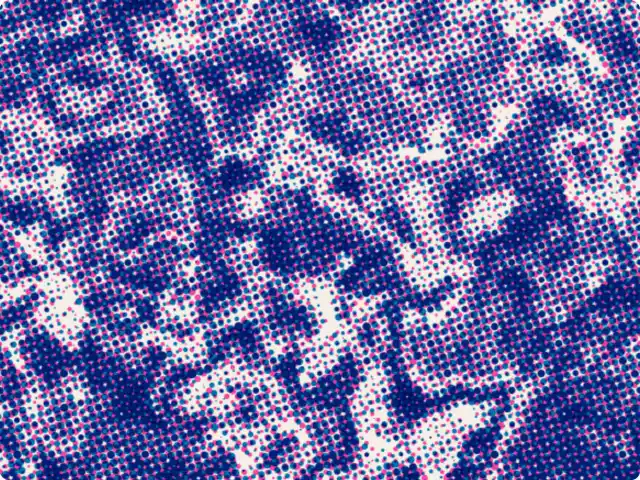
Its controls are grouped the way you would think about a print:
- Source: warped noise, ridges, blobs, or your own image, plus a seed.
- Screen: the shape (dots, squares, lines or crosses), cell size, dot gain and angle.
- Tones: contrast and brightness of the source, before it becomes dots.
- Inks: one ink or two (duo), the paper color, ink A, ink B and misregistration.
Four presets show the range: Pink/blue riso, Newsprint, Engraving and Neon.
3. Change it in plain words
Most of the work happens here. Ask for what is missing, one thing at a time:
- “Add a third ink in yellow, on its own screen angle.”
- “Make the dot size follow a second image I upload.”
- “Add a paper grain texture on top.”
- “Add 2× and 4× export, I need it for print.”
Each message costs 3 credits, or 10 in Best for the hardest changes. If a change breaks something, Blueprint fixes it automatically, for free. Every change is saved as a version, so you can go back.
4. A few halftone settings, explained
- Cell size is the distance between dot centers. Small cells read as a photo, big cells as a graphic pattern. In print it is measured in lines per inch.
- Angle rotates the screen. Black is usually printed at 45°, the angle the eye notices least. When several inks overlap, each one gets its own angle (often 15°, 75°, 0° and 45° for four colors) to avoid moiré.
- Dot gain makes every dot slightly bigger, the way ink spreads into paper. A little gain makes a digital halftone look printed.
- Misregistration shifts one ink against the other, like a riso print where the drums don’t line up perfectly.
5. Export and share
Export a PNG of the current image, at 1× or at 2× and 4× when the tool offers them. On a paid plan you can also publish the tool on its own page, embed it on a website, or invite a client by email to use it, change its settings or remix it. That last part is often the point: the client makes the next twenty assets without coming back to you for each one.
Try the halftone generator, or read what a generative design tool is for the bigger picture.
What tool do you need?
Describe it in a sentence. Blueprint builds it with sliders, presets and export. Your first tool is free.
See how it works